Once installed you will need to follow the below steps to setup in Chrome + Firefox
Firefox setup
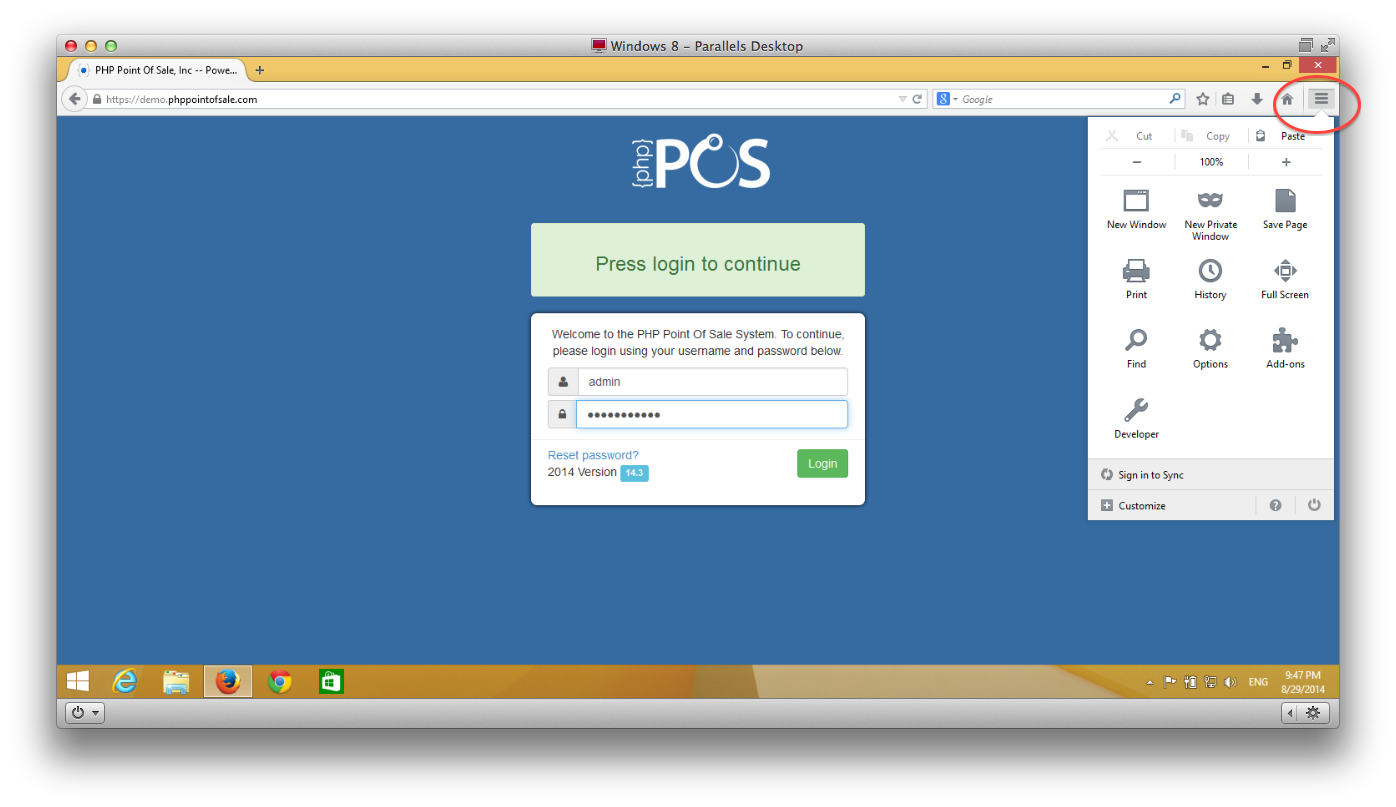
In firefox click the menu button at top right of screen (three horizontal bars) (as shown below)
Firefox setup menu
Choose Print
Click Page Setup (Make sure print background images is unchecked)
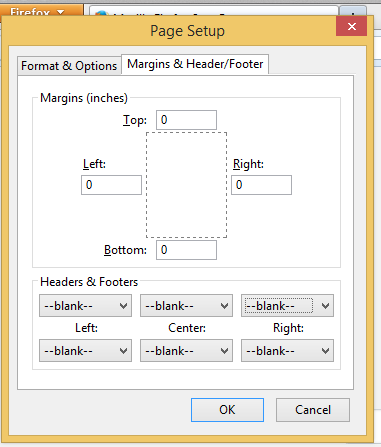
Click Margins & Header/Footer
Set all margins to 0.
Set Headers and Footers to –Blank– as shown below
Page setup for margins + headers/footers
Chrome Setup
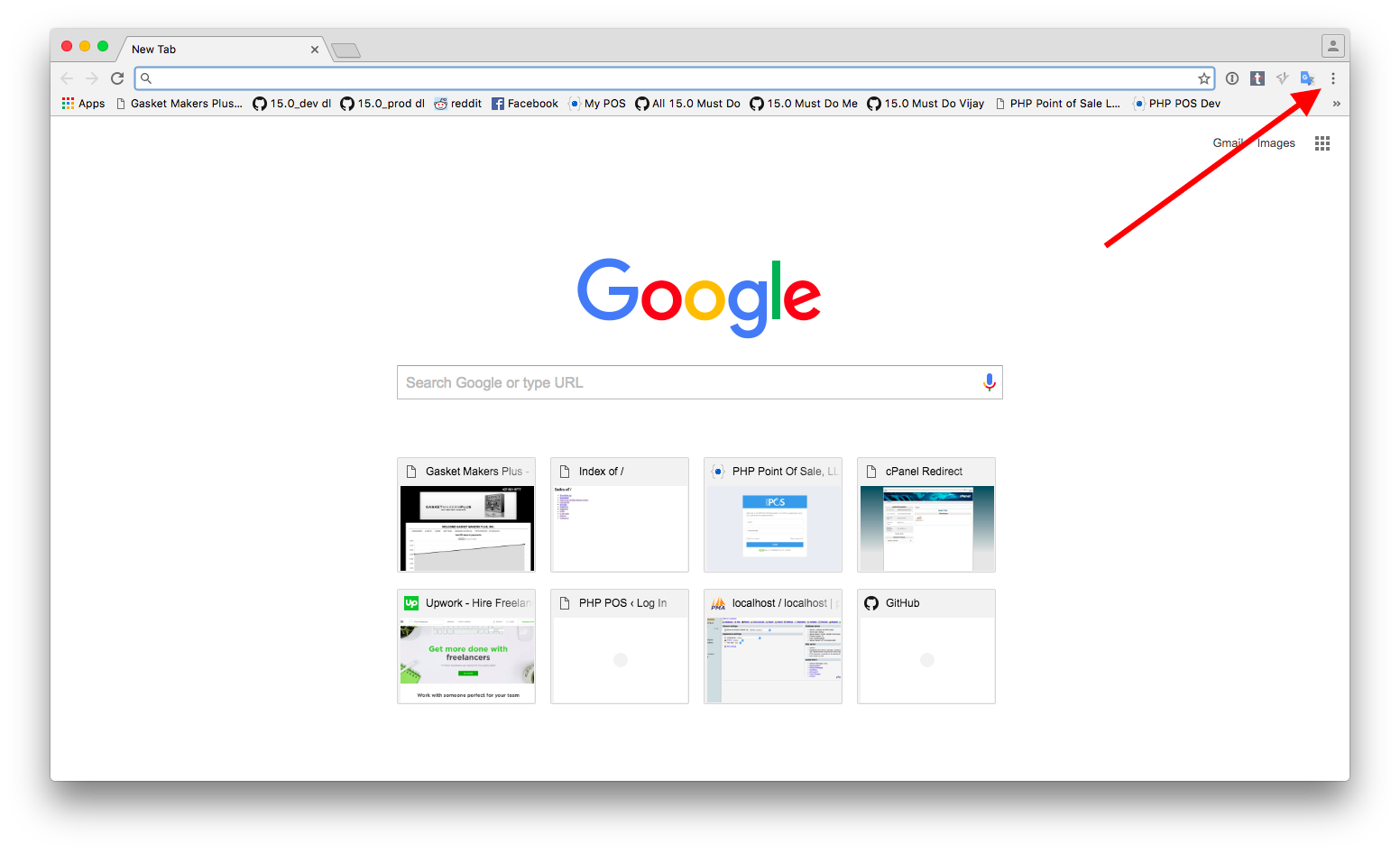
In Chrome click the menu button at top right of screen (three vertical dots) (as shown below) and choose Print
Chrome menu
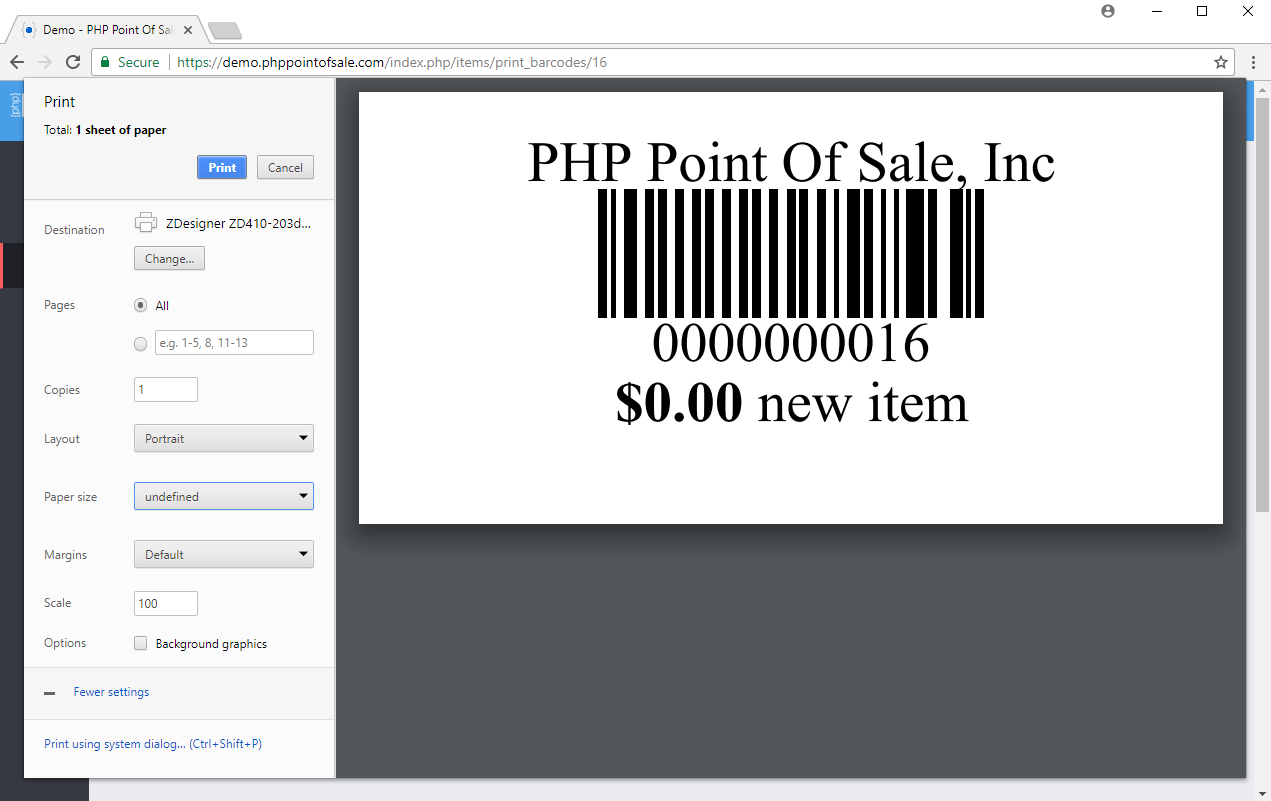
In the dialog the pops up; match your settings on left dialog as shown in image below (**You will need to click the link more settings to reveal margins and paper size)
Dialog for printer settings
You can now print and that is IT!
Mac OS X 3rd party driver setup
For Mac OS X you will need a 3rd party driver if you cannot get the below steps to work. This can be obtained at the Peninsula Group’s website. They will be able to help you install and print the barcodes in nexpos.
Mac OS X Native Setup (Doesn’t work on newer versions of Mac OS X)
Turn on printer sharing in system preferences –> Sharing
Open terminal app and type: sudo cupsctl WebInterface=yes type an administrator password. NOTE: This will not give you feedback as you type. After you type password hit enter