
Printing From an Android Device Using
ESCPOS Print Service
If you are using NexPos on an Android device and need a reliable way to print receipts, we recommend using a third-party print service app that has proven to work well with most ESCPOS-compatible receipt printers.
Follow the steps below to install and configure the app.
Step 1: Download the ESCPOS Print Service App
We’ve found a dependable solution available on the Google Play Store:
ESCPOS Print Service
Download link:
https://play.google.com/store/apps/details?id=com.loopedlabs.escposprintservice&pcampaignid=web_share
This app allows Android devices to communicate with many popular receipt printers that use the ESCPOS command format.
Step 2: Set Up the App
-
Open the ESCPOS Print Service app after installing it.
-
Follow the on-screen prompts to enable the print service.
-
Pair your receipt printer with the Android device (Bluetooth, USB OTG, or network depending on your printer model).
-
Ensure the printer is detected within the app and shows as available.
Step 3: Print From NexPos
When you print a receipt from NexPos:
-
Tap Print within NexPos.
-
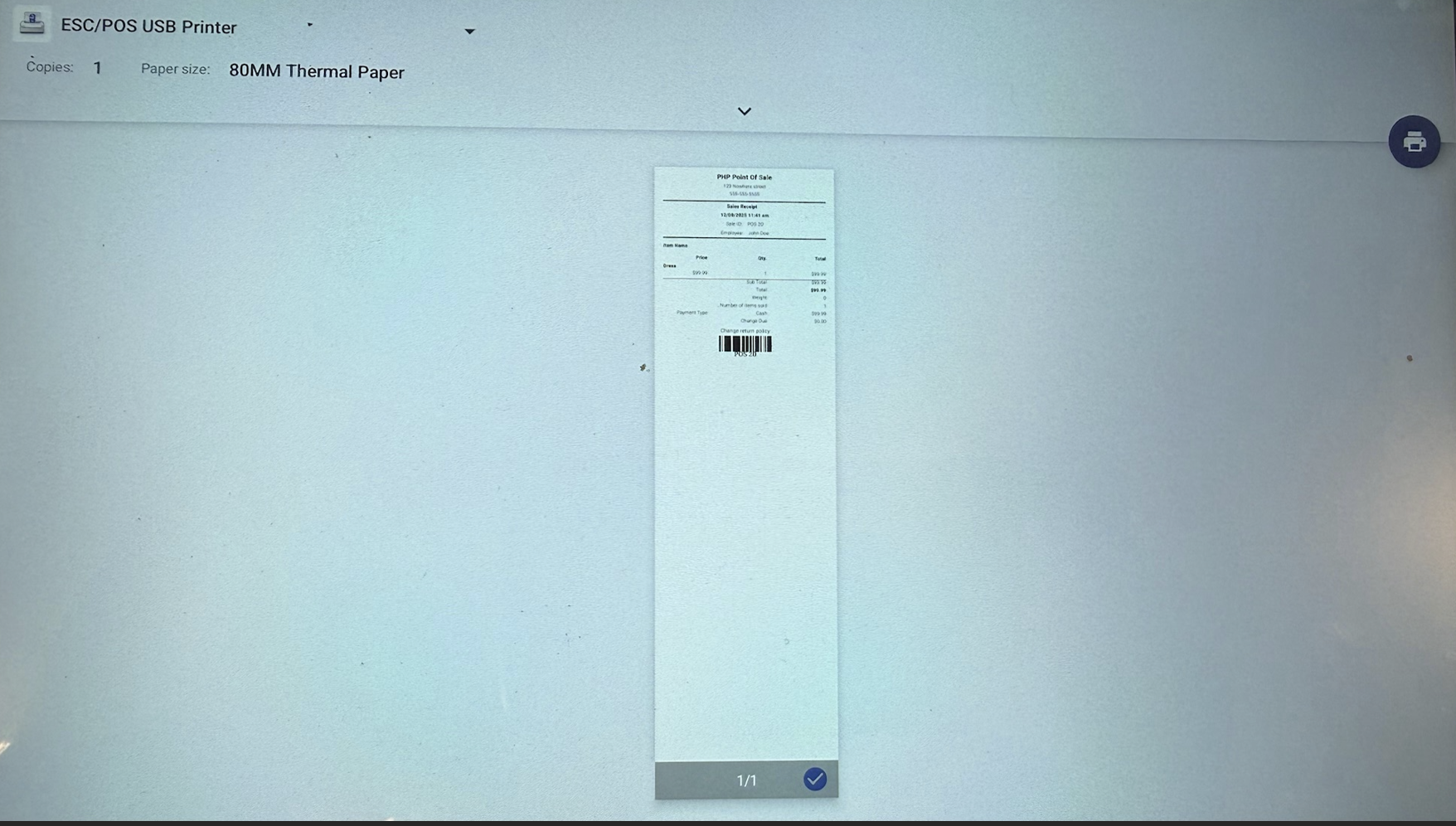
When the Android print menu appears, choose ESCPOS as the printer.
-
Confirm the print job to send the receipt to your paired printer.
Notes & Tips
-
This method works best with thermal receipt printers using the ESCPOS protocol, such as Star, Epson-compatible, Rongta, MUNBYN, and others.
-
If the printer does not appear in the ESCPOS Print Service app, ensure it is powered on, properly paired/connected, and supports ESCPOS commands.
-
Android printing behavior may vary by device model and OS version.